
AI Ecommerce Website Hero Images
Create storefront hero artwork with space for live text and a crop that keeps the product visible.
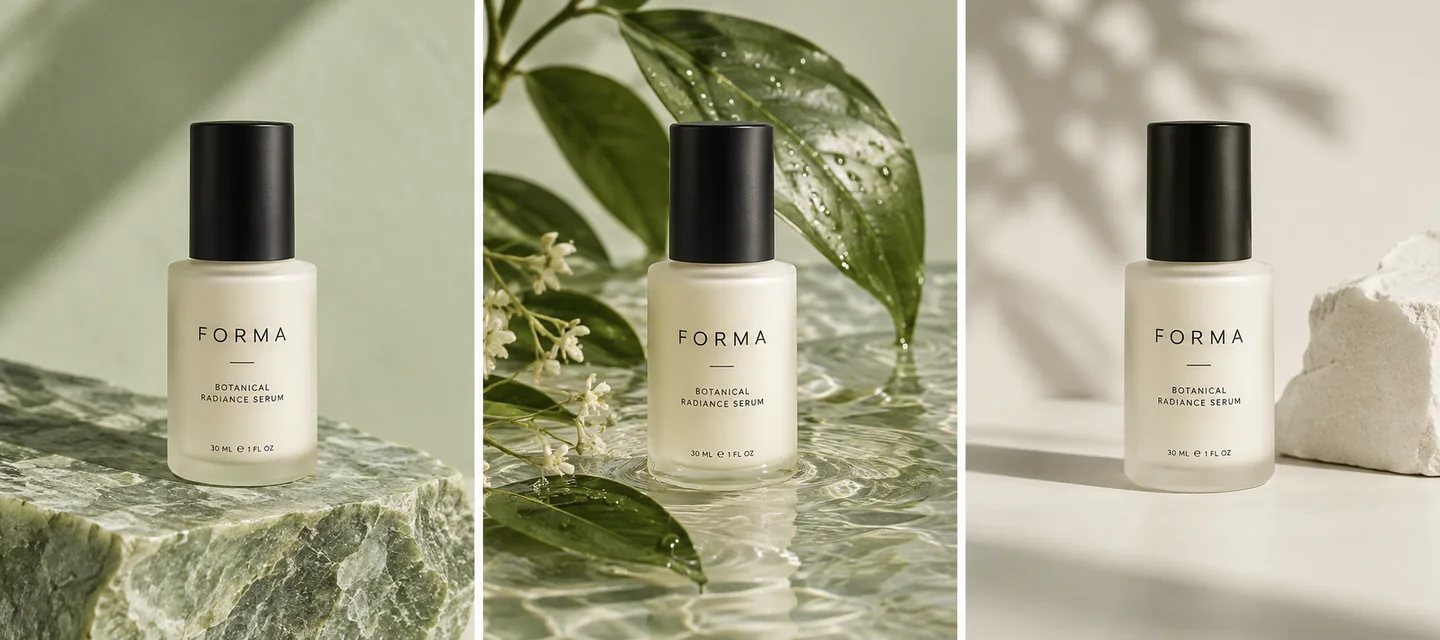
Give this visual a specific job
A storefront hero is a composition problem: the product, live headline and button must fit together on desktop and mobile. Create artwork with a quiet text area, then add readable HTML text in your storefront. Plan a separate mobile composition when the wide crop would hide the product; resizing alone cannot fix every arrangement.
Three directions to explore
Wide storefront banner
Place the product where it will not compete with the live headline and button.
Prepare the actual product image and note where your theme places its headline and button. Use a screenshot or layout reference to explain the space the artwork needs.
Mobile hero crop
Keep the main product within the crop that your theme actually displays on a narrow screen.
Collection campaign
Use a shared palette and lighting direction so the banner connects with the collection below it.
Explore visual references
Existing scene previews for inspiration. Use the creation tool and your brief for the exact composition you need.


Make the brief your own
Start from this composition, add your product, and revise the direction to fit your campaign.
Personalize this starting brief, then copy it into AI Studio or Poster Master with your actual product photo.
A workflow for this visual
1.Prepare the reference
Prepare the actual product image and note where your theme places its headline and button. Use a screenshot or layout reference to explain the space the artwork needs.
2.Direct the composition
Open AI Studio, attach your product photo and use your brief to direct the surface, lighting and composition.
3.Review and prepare
Compare the result with the actual product. Check details at full size, then crop or resize for the intended placement.
Check before you publish
- The product stays visible in your theme's desktop and mobile crop.
- Live text and the button have a readable background.
- Important content is not permanently baked into the image.
- The banner style matches the collection and product photos.
Match the asset to the destination's requirements. Read the marketplace image guide. For crop preparation, use the browser image resizer.
A few things to know
Does Glowya install the banner in my store?
Download and review the artwork, then add it through your storefront theme. This page is a creative workflow, not an automatic theme integration.
Is there one universal hero image size?
No. The theme and placement determine the displayed crop. Inspect the storefront on both desktop and mobile before preparing all campaign assets.
Make the next visual your own.
Generation requires an active membership and sufficient credits. Any introductory offer depends on your account and the current checkout. See Plans for current pricing and eligibility; there is no permanent free generation tier. View pricing.